 Audialta
1 Getting started
When you first open Audialta, the station list is empty. The app offers you three ways in: Search Directory, Add Station by URL and Import Station List. Later you’ll find the same options in the + menu at the top of the toolbar, along with Manage Stations and exporting and sharing your station list.
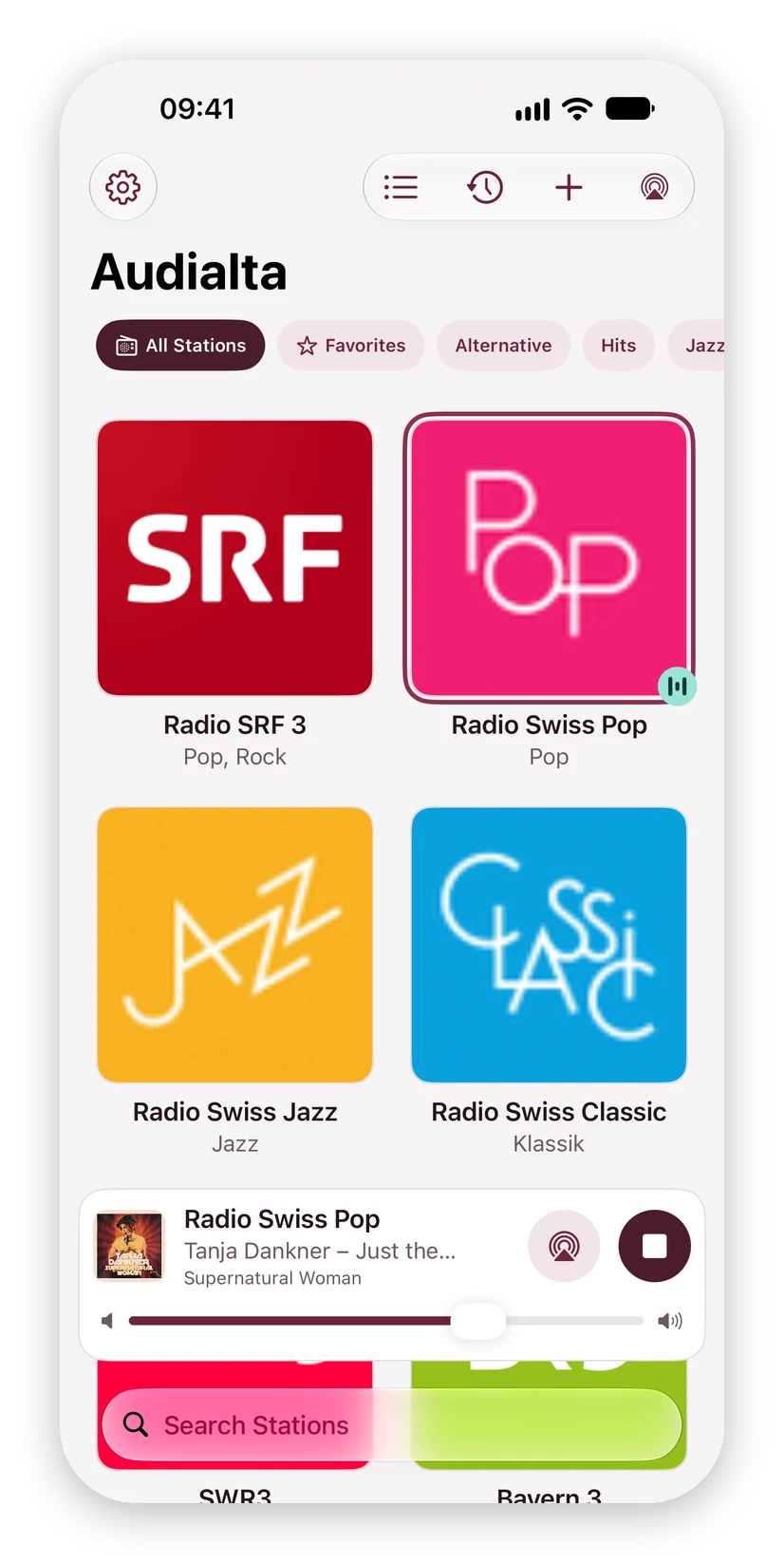
Playing: Tap a station and it plays. Tap it again and it stops. The mini player appears at the bottom with the station, the track and a button to play and stop.
If you’re signed in to iCloud and have already set up Audialta on another device, the app fetches your stations from there. Until they arrive, the screen shows Fetching data from iCloud …
Language: Audialta is available in English, German, French, Italian, Spanish, Dutch and Portuguese and follows your device’s language.
2 Stations from the radio directory
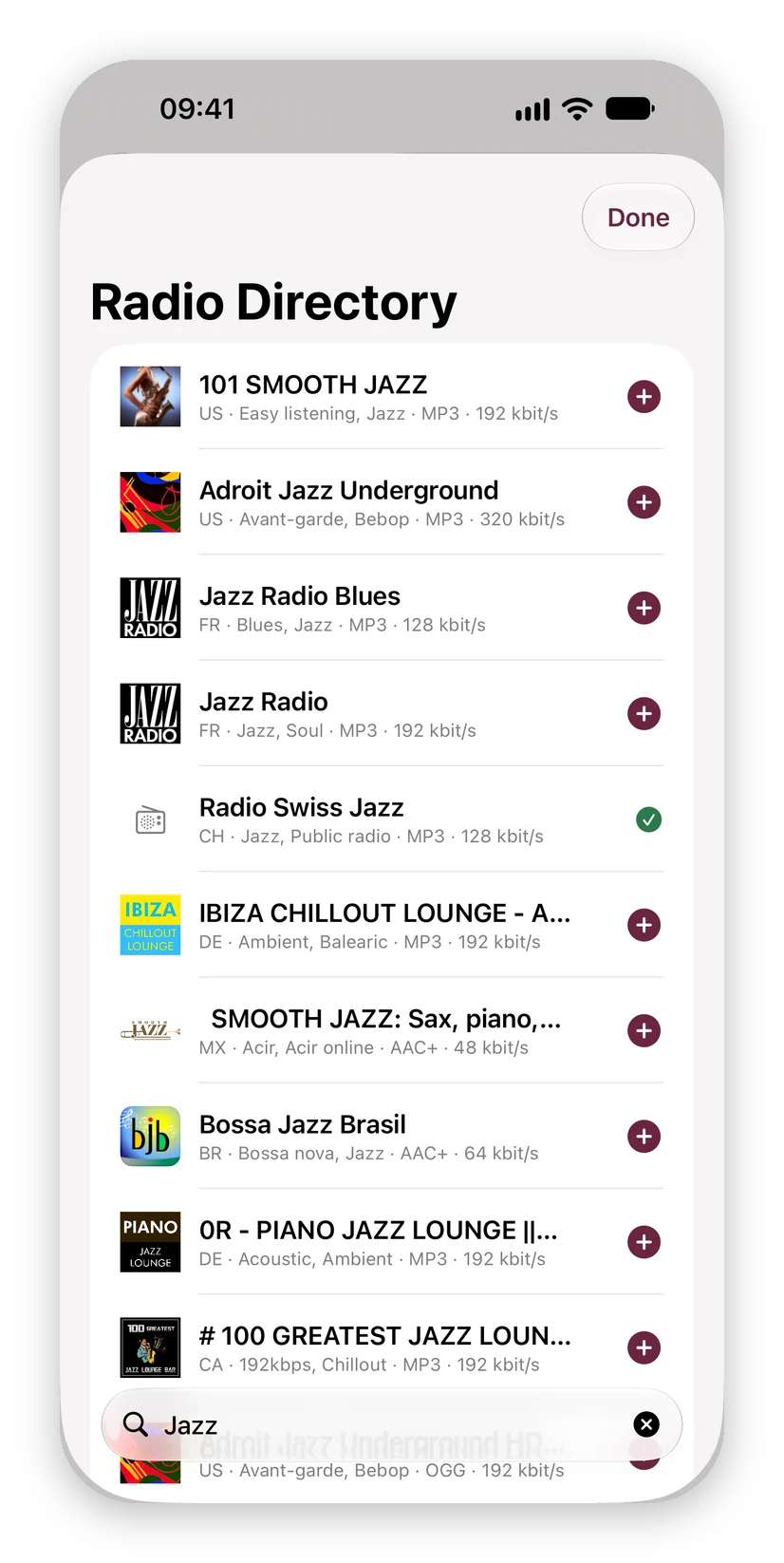
+ › Search Directory opens the radio directory. It comes from radio-browser.info, an open, community-maintained directory of stations from all over the world.
Type a station name, such as “SRF 3” or “N-JOY”. The search starts from two characters as soon as you pause briefly. Audialta shows up to 40 results, most popular first; stations the directory knows to be broken stay hidden.
Each result shows the logo and name plus country, genre, format and bit rate. Tap + to add the station along with its logo; the first genres become its subtitle. A checkmark means the station is already in your list.
Tip: If searching your own stations finds nothing, Audialta offers to continue in the radio directory with the same search term.
3 Stations by stream URL
If you know the stream address, from the station’s website for example, choose + › Add Station by URL. In the New Station form, enter:
- Name and, if you like, a Subtitle, such as the genre. Separate several genres with commas (“Pop, Rock”).
- Stream URL: If
https://is missing, Audialta adds it.
Check Stream briefly connects to the station and tells you whether it can be played. If the address is a playlist, Audialta shows which address the stream actually plays from.
Supported are MP3, AAC and HLS streams as well as playlists in .pls, .m3u and .asx format. Audialta doesn’t play Ogg/Vorbis; Check Stream will tell you.
Save becomes available once a name and a valid address are entered. To change a station later, open its context menu (touch and hold, or right-click on the Mac) and choose Edit.
4 Station logos
If you save a station without a logo, Audialta looks for one itself: first at the Logo URL, then on the station’s Website. If there’s no website, Audialta first looks up the stream in the radio directory, which often has the logo of that very channel. Otherwise it derives the website from the stream address.
In the Logo section of the form you can also do this by hand:
- Fetch Logo Automatically searches again. If Audialta finds nothing, enter the website or choose an image.
- Choose Image … takes a picture from your Photos, or from a file on the Mac.
- Remove Logo shows the station’s initials again.
If a logo is out of date, choose Reload Logo in the station’s context menu.
5 Playback and AirPlay
The station that’s playing has a ring and a small dot. While Audialta connects, the mini player shows Connecting …
AirPlay: The AirPlay button in the mini player, to the right of the play button in the full player and at the top of the toolbar opens the speaker selection. Pick several AirPlay 2 devices and the station plays in all rooms at once. When an AirPlay, Bluetooth or car device is selected, the button is filled in.
Volume: The slider is in the mini player and in the full player. On iPhone and iPad it controls the device volume, and with AirPlay the volume of the selected speakers. On the Mac it only controls the radio; see Audialta on the Mac.
Level Volume: Radio stations are mixed at very different loudness. On iPhone and iPad Audialta keeps measuring the loudness and gently evens out each station. All stations then sound about equally loud and can be turned down just as low, even on AirPlay speakers such as HomePod, where otherwise the lowest step can already be too loud for a loud station. This applies to MP3 and AAC stations; HLS streams and the Mac play without leveling. You can turn it off in Settings.
In the background: The radio keeps playing when you leave Audialta or lock your device. The Lock Screen, Control Center, headphones and media keys show the track and cover art and control playback.
There’s no pause on the radio: A live station can’t be paused and resumed later at the same point. So pause on the Lock Screen or on your headphones stops the station; when you play it again, you hear what’s on right now. Next and previous are turned off.
Dropouts: If the stream breaks off, Audialta reconnects up to five times, with short pauses in between. If that doesn’t work, the mini player shows The station is currently unavailable.
Keep listening: If you quit Audialta while a station is playing, it carries on next time you open the app. If you stopped it first or the sleep timer ran out, it stays quiet. You can turn this off in Settings.
6 The full player
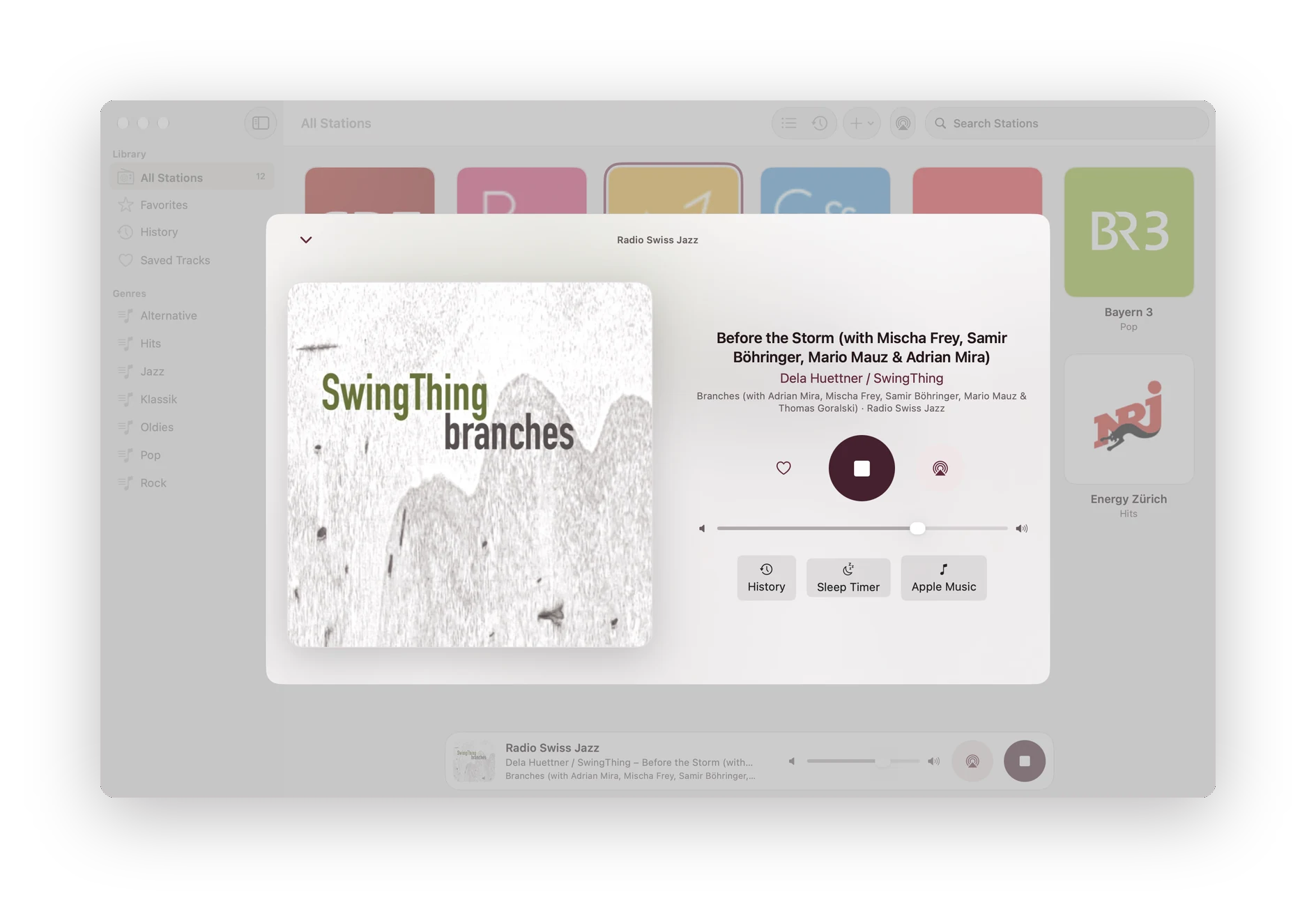
Tap the cover or the track in the mini player, or swipe it up, and the full player opens. It shows the cover art, with track, artist, album and station below. Behind it, the cover appears blurred as the background; you can turn this off in Settings under Appearance. When stopped, the cover gets a little smaller. In landscape, cover and details sit side by side.
- Heart: saves the current track (see History).
- Play/Stop: While Audialta connects, a ring spins around the button.
- AirPlay to the right of it.
- Volume below.
- History, Sleep Timer and, if the track was found in the catalog, Apple Music.
Close it with the arrow at the top left, or with Esc on the Mac.

7 Tracks, cover art and Apple Music
Many stations broadcast which track is playing. Audialta reads this information, separates artist and title and filters out lines that only contain the station name or advertising.
Audialta then looks up the track in Apple’s catalog, first in your country’s store, then in the US store. If it finds a match, the app shows the spelling from the catalog, the album and the cover art, and the Apple Music button opens the track there.
No track showing? Then the station doesn’t send track information, or only sends its own name. No cover? Without an artist, Audialta doesn’t search the catalog, and not every track can be found there. In that case the player shows the station logo.
8 History and saved tracks
Every recognized track ends up in the History, with cover art, station and time. Open it with the History button in the toolbar or in the full player. At the top, choose between All and Saved.
Saving: Tap the heart in the full player, or choose Save Track from the context menu in the history. Saved tracks have a heart.
Each entry’s context menu has Copy (copies “Artist – Title”, for a message, say) and Delete; the button on the right opens the track in Apple Music.
How much is kept: The history holds the last 200 tracks. Saved tracks don’t count towards that and are kept without limit. Clear deletes the history; saved tracks stay.
History and saved tracks stay on the device and are not synced via iCloud.
9 Arranging, favorites and search
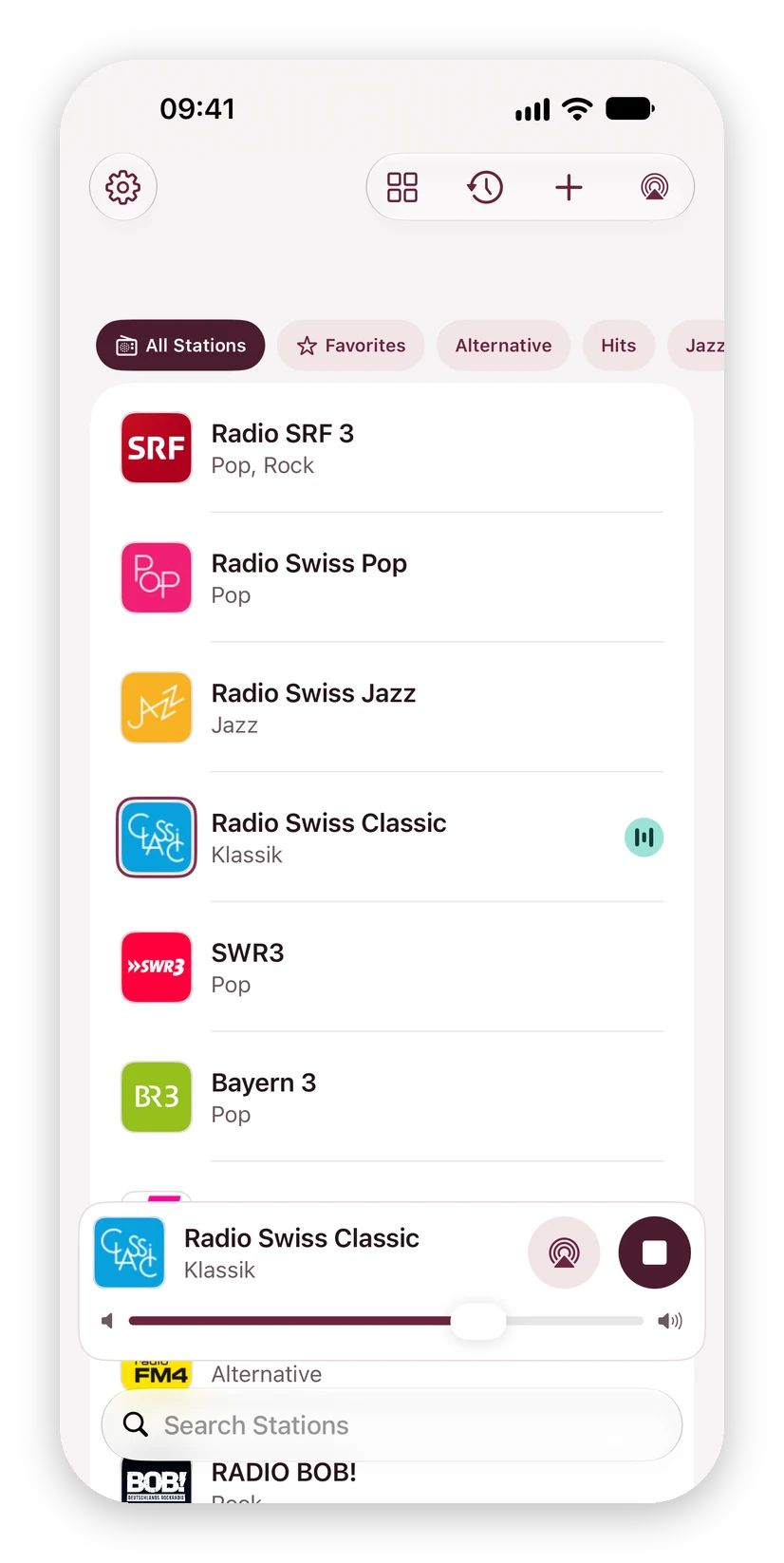
Grid or list: The Show as List or Show as Grid button in the toolbar switches the view. In the list, the station that’s playing shows the current track. Your choice applies to each device separately.
Sorting: In the grid, drag a tile to its new place; the others move out of the way. Or choose Move Forward or Move Back in the context menu. In the list, touch and hold, then drag. You can also change the order under + › Manage Stations. Sorting is locked while you search.
Favorites: Choose Add to Favorites in the context menu; in the list you can also swipe right. Favorites have a star in the list. On the Mac they get their own view in the sidebar and appear in the menu bar menu.
Searching: The Search Stations field filters your stations by name and subtitle. If none match, tap Search the Radio Directory for …
Deleting: in the context menu, in the list with a swipe left, or under Manage Stations. If the station is playing, it stops.
10 Sleep Timer
In the full player, tap Sleep Timer and choose 15, 30, 45, 60 or 90 minutes. On the Mac you’ll also find it in the menu bar menu.
While the timer is running, the button shows the time remaining and the mini player shows a moon. The menu tells you when it ends, and Cancel Sleep Timer turns it off.
In the last 30 seconds the radio gently gets quieter, then it stops. The timer also keeps running when you switch stations. If you stop the radio yourself, the timer ends. After the sleep timer, Audialta won’t start playing by itself the next time you open it.
11 Station lists
Your whole station list, logos included, fits into one file with the extension .audialta.
- + › Export Station List … saves it, in the Files app for example, or to a folder on the Mac.
- + › Share Station List … sends it by AirDrop, Mail or Messages.
- + › Import Station List … reads an
.audialtafile, but also M3U and PLS lists, as offered by many radio stations and programs.
You can also simply open an .audialta file: tap it in Mail or Files, receive it by AirDrop or double-click it on the Mac. Audialta then asks what should happen:
- Add stations: New stations are added. Audialta recognizes the ones you already have by their stream address and skips them.
- Replace List: Your current stations are deleted and replaced by the list.
The file contains only the stations – no history and no saved tracks. Anyone who gets it can read it, so only send it to people you want to have it.
12 Siri and Shortcuts
Siri knows your stations without any setup. When you add or rename a station, Siri learns the new name too.
| You say | Audialta … |
|---|---|
| “Play Radio SRF 3 in Audialta” “Listen to Radio SRF 3 with Audialta” | plays that station. |
| “Play Audialta” “Listen to radio with Audialta” | plays the last station you listened to. |
| “Stop Audialta” | stops the radio. |
Audialta doesn’t need to be open, and the app doesn’t come to the foreground. It works the same way in German, French and Italian, for example “Audialta abspielen”, “Lancer Audialta” or “Avvia Audialta”.
Shortcuts: The Shortcuts app has the actions Play Station, Keep Listening and Stop Playback. Use them to build your own shortcuts, such as “radio on when I get home”, or to put a station on the Action button.
Apple Watch: The same phrases work on your watch; see Apple Watch.
13 Widgets and Live Activity
On iPhone and iPad you can control Audialta without opening the app. The buttons in the widgets work instantly, and Audialta stays in the background.
Adding a widget: Touch and hold an empty spot on the Home Screen, tap Edit, then Add Widget. Search for Audialta and choose a size.
- Small: the current station with the track, plus play and stop and the AirPlay button.
- Medium: adds up to four favorites. Tap a logo to start the station.
- Large: track and cover art at the top, up to twelve favorites below.
- Extra large, iPad only, landscape and portrait: up to 16 favorites.
If you haven’t marked any favorites, the widgets show your first stations in the order of your station list.
AirPlay button: It opens Audialta with the full player, and the AirPlay button next to the play button lights up briefly. Choose your speakers there. Apple doesn’t allow the selection directly in the widget.
Lock Screen: Three small widgets show the station and the current track; the round one starts and stops the radio. To add them, touch and hold the Lock Screen and choose Customize.
Control Center and Action button: The Radio control turns the last station you listened to on and off (iOS 18 or later).
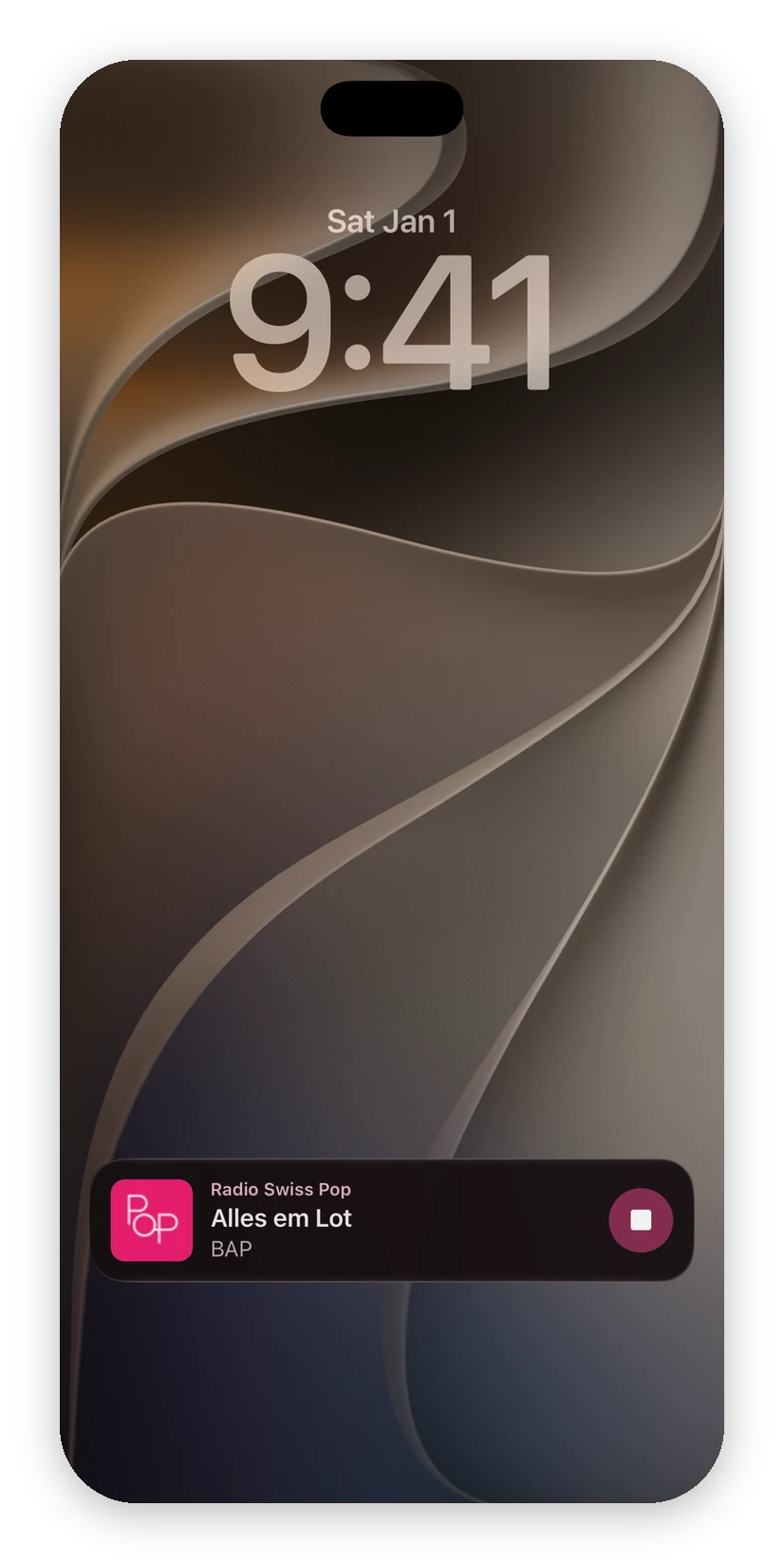
Live Activity: While a station is playing, the Lock Screen shows the cover art, track and artist with a stop button. On iPhones with the Dynamic Island, the station logo appears at the top.
There are no Audialta widgets on the Mac. There, the menu bar icon does the job.

14 CarPlay
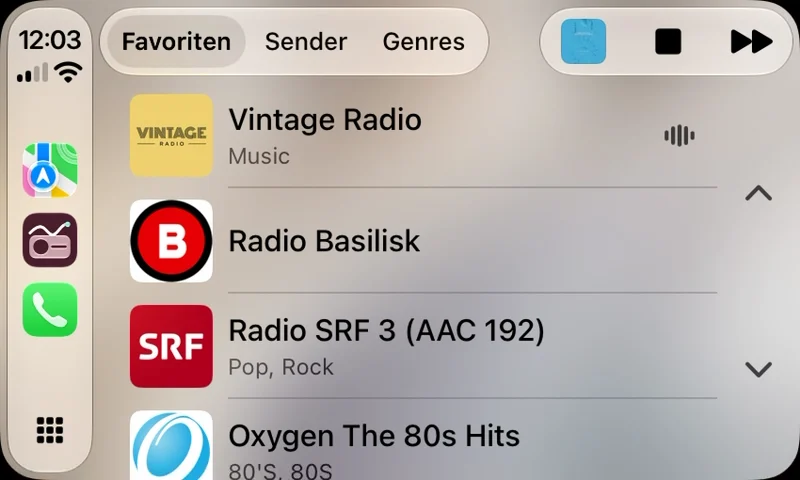
In the car, Audialta appears in CarPlay with its own icon. Connect your iPhone to the car, by cable or wirelessly, and tap Audialta. At the top you choose between three lists:
- Favorites: the stations you marked with the star in the app.
- Stations: all stations in the order of your station list.
- Genres: your stations by genre. Tap a genre to see its stations.
Tap a station to start it and open Now Playing with the track and cover. The station that’s playing is marked in the lists with a small level meter. You can also start and stop with the buttons on the steering wheel.
Siri: No special commands needed. “Play Radio SRF 3 in Audialta” and “Play Audialta” work in the car just as they do on your iPhone; see Siri and Shortcuts.
You add, arrange and favorite stations in the app on your iPhone. CarPlay picks up the changes right away. When CarPlay disconnects, the radio stops so the sound doesn’t suddenly come from your iPhone.
15 Apple Watch
Audialta is also on Apple Watch, with watchOS 10 or later. The watch app comes with the iPhone app; if it’s missing, install it from the Watch app on your iPhone.
Station list: Your watch shows the stations from your iPhone, favorites at the top, then More Stations. Tap a station to start it on your iPhone. This makes your watch a remote control, in the free version too.
Now Playing: Here you see the logo, station, track and artist, and you start or stop the radio. Turn the Digital Crown to change the volume. Swipe left to find Save Track and the Sleep Timer with 15, 30, 45, 60 or 90 minutes. Saved tracks end up in the history on your iPhone.
Where it plays: At the top of the station list you choose On iPhone or On Watch. On Watch requires Audialta Pro, which you buy in Audialta on your iPhone, in Settings. Your watch then plays radio on its own, even without your iPhone: over Wi-Fi or cellular, on your Bluetooth headphones. If the connection drops, it reconnects by itself.
Watch face and Smart Stack: A complication shows the station that’s playing on your watch face. The favorites widget in the Smart Stack gives you up to four favorites as buttons.
Siri: The same phrases work on your watch as on your iPhone: “Play Radio SRF 3 in Audialta”, “Play Audialta” and “Stop Audialta”; see Siri and Shortcuts.
You add, arrange and delete stations in the app on your iPhone. Your watch shows what you’ve set up there.
16 iPad and iPhone Duo
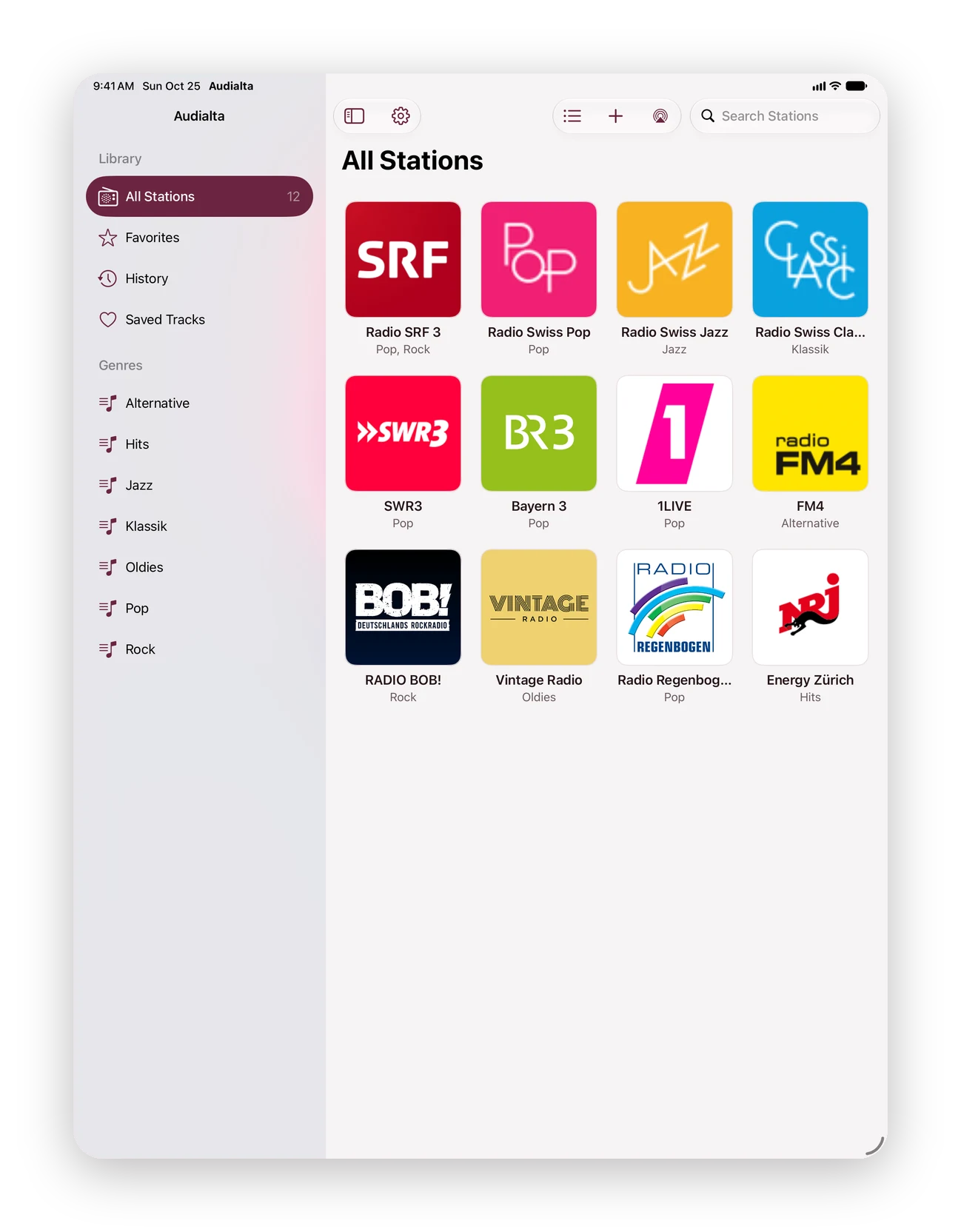
On the iPad and the unfolded iPhone Duo, Audialta makes use of the extra width:
- Sidebar: on the left, the library with All Stations, Favorites, History, Saved Tracks and your genres, just like on the Mac. The Library button at the top left shows and hides it.
- Player column: while a station is playing, the player sits to the right of your stations: cover, title, controls, AirPlay, volume and sleep timer, with Recently on this station below. Where space is tight, such as on the iPhone Duo or an iPad in portrait, the sidebar folds away to make room.
- History as covers: your history and saved tracks appear as cover cards, grouped by day. Tap one to open the track in Apple Music; touch and hold for Save Track, Copy and Delete.
Folding and unfolding: fold the iPhone Duo and the familiar iPhone view with the mini player and filters returns. The radio keeps playing, and whatever you selected stays selected.

17 Audialta on the Mac
On the Mac, Audialta is a real Mac app with a sidebar:
- Library: All Stations, Favorites, History and Saved Tracks.
- Genres: are created automatically from your stations’ subtitles. A station with “Pop, Rock” appears under both.
Menu bar: The radio icon at the top right is filled in while a station is playing. Its menu shows the station and track, plus Play or Stop, Save Track, up to 15 favorites to switch to directly (without favorites, your first stations), the Sleep Timer and Open Audialta, Settings … and Quit Audialta. The radio keeps playing when you close the window.
| Space | Play or stop (Playback menu) |
| Esc | Close the full player |
| ⌘ , | Settings |
Volume: The slider in the mini player and in the full player only makes the radio quieter or louder, independently of the Mac’s volume. The speaker icon to its left mutes and unmutes the Mac, with a short fade out and in. If the Mac is muted or almost silent, the icon turns red: then you won’t hear anything, wherever the slider is. With AirPlay from the Mac, the Mac’s volume doesn’t matter.
On the Mac, you choose logos from a file with Choose Image ….
18 Settings, Pro and iCloud
Open Settings on iPhone and iPad with the gear at the top left, and on the Mac from the app menu or with ⌘ ,.
- Audialta Pro: how many stations are saved, Audialta Pro… and Restore Purchases (see below).
- Playback: Resume Last Station on Launch (on). On iPhone and iPad also Level Volume (on, see Playback and AirPlay) and Use System Playback (off): iOS then plays stations as in earlier versions, without leveling. Only turn it on if a station doesn’t play properly otherwise.
- Appearance: Blurred cover as background in the full player (on). If Reduce Transparency is turned on in Accessibility, the background stays flat.
- Mac: Open at Login and Show Icon in Menu Bar (on).
- About Audialta: version and build. Please include them when you write to us.
Settings apply to each device separately.
Free and Audialta Pro
The free version saves up to four stations, with every feature. Audialta Pro removes the limit: a one-time purchase, no subscription. Pro works on iPhone, iPad and Mac with the same Apple Account and can be shared through Family Sharing. On Apple Watch, Pro also unlocks playback On Watch; see Apple Watch.
If you want to add a fifth station, Audialta shows the purchase sheet. Stations you already have – from another device via iCloud, for example – are kept and keep playing. On a new device or after reinstalling, Restore Purchases brings your purchase back.
Syncing via iCloud
If you’re signed in to iCloud, Audialta syncs your stations across your devices: names, addresses, logos, favorites and order. A new station on the iPhone shows up on the Mac shortly afterwards. There’s nothing to set up.
History, saved tracks and settings are not synced; they stay on the device.
If syncing doesn’t work, Audialta tells you why: not signed in to iCloud, no connection or iCloud storage full. Audialta works just the same without iCloud; your stations then stay on the device.
19 When something doesn’t work
Answers to common questions are under Frequently asked questions: when a station won’t play or shows no track, what happens on the go with Wi-Fi, cellular, CarPlay and headphones, why your stations are missing on another device, and what Apple Watch can do without your iPhone.
If that doesn’t help, write to feedback@audialta.app with your device, system version, the version shown under Settings › About Audialta and, if it’s about a station, its stream URL.